Category: Photography

Interviewed on TWiT Photo

I was honored to be the featured guest on TWiT Photo, which normally features only the very best professional photographers. The on-demand video (and audio-only version) are now live. While the usual hosts +Leo Laporte and +Catherine Hall were in Norway, I had a terrific time with stand-in co-hosts +Trey Ratcliff and +Sarah Lane. And thanks to +Tony Wang for putting the show together. Hope you enjoy.

[I was particularly impressed with the skills of the TWiT team. I've always appreciated Sarah's on-screen talents, but it's not until you sit down on a set with her that you realize how good she is at listening and keeping the show moving. And Tony not only runs the show, but has the uncanny ability to switch in web pages and images almost before they're mentioned, even when he doesn't know what's coming. True professionals.]

HDR Workflows

Update 1/19/12: Based on feedback from many including John Omvik at Unified Color, I’ve improved my #1 workflow and substantially edited all the workflow descriptions below.

This is my first-ever high-dynamic-range (HDR) image, shot nearly three years ago. Since then my HDR workflow has changed quite a bit — almost weekly, it seems. As I’ve recently been running tests on some aspects of HDR processes and tools and particularly methods for transferring images between applications, I thought this would be a good time to pin down and document the workflows I’ve been using and explain why I’m still using them or not.

My primary applications are Adobe’s Lightroom (LR) and Photoshop (PS). I use LR to organize my images and for basic processing. I turn to PS for images that require adjustments beyond LR’s capabilities. The HDR tools I’ve used at one time or another include Photomatix ProLR/EnfuseHDR Efex ProHDR Expose 2 and its cousin, 32 Float. Note that all of these applications are available as free-trial versions. I encourage you to download them and experiment with these workflows.

Because you may not have some of these applications, I’ll describe seven different multi-image workflows as well as some for single-image HDR. My goal is to cover not only the tools and methods I’m currently using, but also those that I tried, tested and in some cases abandoned before settling on my current choices.

Workflow #1: 32 Float (with Photoshop)

I’ve recently started using Unified Color’s 32 Float for most of my high-quality HDR images. 32 Float is a PS-plugin version of HDR Expose. Given that I usually end up in PS anyway, this gives me a simpler workflow than I’d get with HDR Expose. I’m only giving up batch operations and a few functions that are better performed in LR or PS anyway. This is my current workflow for my highest-quality HDR images.

  1. Unless you’re shooting action/sports, which rules out multi-exposure HDR anyway, always shoot in RAW. Otherwise none of this applies to you.
  2. In LR, make only two adjustments to your images: lens correction and camera calibration, which can only be done at this stage. Defer everything else until your RAW files have been merged into a single 32-bit image. (I have camera profiles for each of my body/lens combinations made using a ColorChecker Passport.) Use Copy/Sync to apply the same adjustments to all the bracketed originals. If you’re not an LR user, you can instead perform the equivalent of this and the following step using Adobe Bridge and Adobe Camera Raw (ACR).
  3. Select the bracketed RAW files in LR then (from the Photo menu or ctrl/right-click) Edit in…Merge to HDR Pro in Photoshop. Importantly, and unlike some other Edit in… and Export options, Merge to HDR Pro sends full-range 32-bit files to PS, even if you’ve made adjustments in LR. This launches PS’s own HDR Pro module. [PS's tonemapping is weak, which is why all these third-party tools exist. But the merge-to-HDR function seems to work as well as any other.] In Merge to HDR Pro don’t be alarmed if you don’t see your highlight or shadow details. You’re only looking at a low-dynamic-range (LDR) preview of the HDR image, which can’t be properly displayed on your monitor.
  4. In HDR Pro set the Mode to 32 Bit and click OK. This merges the originals to create a 32-bit HDR image, then opens it as the Background layer in PS.
  5. Launch 32 Float from PS by selecting Filter…Unified Color…32 Float.
  6. In 32 Float tonemap the HDR image to low-dynamic-range (LDR). Many operations are best done here, while you’re in 32-bit mode and your luminance data are separate from your color data. Go ahead with global changes such as sharpening, noise reduction, local contrast and color and tone adjustments, but I’d stay away from dodging and burning in particular. At least in the version I have, there’s no undo feature, so an erroneous burn can wipe out what you’ve done, just like in a wet darkroom!
  7. You’ve now done pretty much all you can do in 32-bit mode, so set Upon Apply Convert To to 16 bpc. This will return a 16-bit image back to PS and change PS to 16-bit RGB mode. It’s also better to change to 16-bit mode while you’re still in 32 Float since there can be some rather quirky artifacts when the 32-to-16 bit conversion is done within PS.
  8. Back in PS, decide whether you want to merge in any of the original exposures. I will often do this in cases where there are ghosts such as people in different positions or if there are artifacts, details, tones or colors that are much better in one of the original images than in the merged one. If so, go back to LR, select the original RAW images and click on PhotoEdit In…Open as Layers in Photoshop… Back in PS, select the merged image then use Layer…Duplicate Layer to copy it as the top layer in the RAW-image stack. Use layer masking and other tools to manually combine your  originals and the merged image.
  9. Further tweak the combined image as necessary. If you need a filter that’s only available in 8-bit RGB mode such as Pixel Bender, Distort or the Topaz Labs suite, change the Mode to 8-bit RGB, but do so as late as possible. Otherwise keep the image in 16-bit mode.
  10. Click Save, which returns the image to LR.
  11. In LR do your cropping, final sharpening, noise reduction and vignetting.

Workflow #2: HDR Expose (without Photoshop)

This variation is designed for those who either don’t have PS or just prefer to do all their retouching in LR.

  1. Don’t make any adjustments in LR’s Develop module. The one exception might be if you need to correct for severe chromatic aberration, which is quite difficult to do later in the workflow.
  2. Select the bracketed RAW files in LR then select File…Export…Merge and Edit in HDR Expose. This uses HDR Expose’s alignment and merge engines instead of PS’s. Important: Make sure you select Merge and Edit Original Image(s) in the Export dialog box. This will send your RAW files directly to HDR Expose. If you select Merge and Edit Images with Lightroom Adjustment(s) you will be sending LDR 16-bit TIFF files and thereby throwing away a lot of important data. The only time to use this option is if you corrected chromatic aberration in step #1. It’s a tradeoff. [There's a workaround for this tradeoff: You can make adjustments in LR's Develop module. (I'd suggest limiting them to lens correction and camera calibration.) Then Export your set of bracketed RAW images as DNG files. This retains their full 32-bit range. You can then start HDR Expose as a standalone application and merge the saved DNG files.]
  3. Tonemap and adjust the image in HDR Expose.
  4. Click OK and save the image as a 16-bit TIFF. It will be returned to LR.
  5. You have the option at this stage to perform additional processing on the merged LDR image in PS. Use Edit in…Photoshop CS5 to export to PS. When you’re done, Save will return the results to LR.
  6. Crop, sharpen, reduce noise and vignette in LR.
  7. Continue with step 8 in Workflow #1.
Workflow #3: LR/Enfuse

Before a friend told me about HDR Expose and 32 Float, this was my first choice for HDR merging and tonemapping. Not only is it free (donationware, actually) it’s also fast and simple and produces a fairly linear tonemapped image ready for additional adjustment. LR/Enfuse is the open-source Enfuse command-line utility packaged as a LR plugin.

  1. Select your bracketed RAW images in LR.
  2. In the LR menu, select File…Plug-in Extras…Blend exposures using LR/Enfuse…
  3. In the Output tab select 16-bit ProPhoto TIFF and Reimport image into Lightroom.
  4. LR/Enfuse will perform the HDR merge and tonemapping. Although you can make some adjustments before it runs, there’s no interactive preview.

The tonemapping in 32 Float, HDR Expose and LR/Enfuse generally give me the most realistic results. But occasionally I want a less-realistic look, in which case I typically turn to Photomatix Pro. There are three different ways to use this utility, depending on the balance you want to strike between simplicity/speed and quality/control.

Workflow #4: Photomatix Tone Mapping Plugin for Photoshop

This plugin is sold separately by HDRsoft. It’s the best way to use Photomatix Pro with PS.

  1. Follow steps 1-4 in Workflow #1.
  2. Launch the Photomatix plugin by selecting Filter…Photomatix…Tone Mapping…
  3. In Photomatix tonemap the HDR image to LDR and make other adjustments. I tend to use default settings here, waiting until I return to PS to make further changes.
  4. Click OK, which returns a 32-bit HDR image to PS.
  5. Don’t worry if the LDR preview of the 32-bit HDR image looks all wrong in PS. Click on Image…Mode…16-Bits/Channel.
  6. If you want the double-tonemapping look, you can make further tweaks in this second HDR Toning step.
  7. Continue with step 8 in Workflow #1.
Workflow #5: Photomatix Pro (with Photoshop but without the Plugin)

If you want to work with PS but don’t want to buy the Photomatix Tone Mapping Plugin for Photoshop, this variation works fine. It’s just a little more complex.

  1. Follow steps 1-4 in Workflow #1.
  2. Save the HDR image as a Radiance (.hdr) file in a temporary location. (You don’t need to keep this for archival purposes since it is easily reproduced from the RAW images at any time.)
  3. Start Photomatix Pro and open the .hdr file.
  4. Use tonemapping and other adjustments to create an LDR image from the HDR image.
  5. Save the LDR file as a 16-bit TIFF and Import (Copy) it into LR. Use a filename that will place it near your originals in the LR grid view.
  6. If you need to make PS adjustments, use Edit In…Photoshop CS5, and return the results to LR as another LDR 16-bit TIFF.
  7. Continue with step 8 in Workflow #1.

Workflow #6: Photomatix Pro (without Photoshop)

This workflow bypasses PS altogether, moving images from LR directly to/from Photomatix Pro. This process is fine for some HDR images, but it has certain weaknesses. First, it depends on Photomatix Pro to perform the HDR merge and image alignment — functions performed better by PS.

  1. Select the bracketed RAW files in LR then select File…Export…Photomatix Pro. But make sure you change the File Settings in the Export One File dialog box to DNG. If you don’t do this, you’ll be sending LDR images to Photomatix Pro and therefore losing highlight and shadow detail. (For an in-depth explanation, see Are You Wasting Dynamic Range?)
  2. Photomatix Pro will merge the DNG (RAW) files into an HDR image.
  3. In Photomatix Pro use tonemapping and other adjustments to create an LDR image from the HDR image.
  4. Click on Save and Re-Import and Photomatix Pro will return a 16-bit TIFF to LR.
Workflow #7: HDR Efex Pro

Nik Software’s HDR Efex Pro is the new kid on the block. While I like Nik’s control-point UI and have settled on their Silver Efex Pro as the #1 plugin for monochrome, HDR Efex Pro has become a tool I don’t use much any more. But many people use it, so I’ve included it in my workflows.

  1. Follow steps 1-4 in Workflow #1.
  2. In PS select Filter…Nik Software…HDR Efex Pro. 
  3. After tonemapping and possibly making other adjustments in HDR Efex Pro click OK, which returns a 16-bit LDR image to PS.
  4. Continue with step 8 in Workflow #1.
Single-Image HDR

When your source is just a single RAW file, there’s no need for the Merge to HDR Pro step. In fact, you can’t run Merge to HDR Pro with just one image. In this case you need to get your RAW file to your tonemapping utility as directly as possible. Starting in LR, use one of these tools, ranked in order of my personal preference:

  • LR/Enfuse: Because it’s simple, this is a workflow I sometimes use for single-image HDR. Just follow the same steps described for Workflow #3.
  • Photomatix Pro: You can’t send a single RAW image through PS to the Photomatix Tone Mapping Plugin, but you can export a single RAW image directly to Photomatix Pro, which automatically returns the resulting image to LR. Use File…Export…Photomatix Pro, but make sure you change the File Settings in the Export One File dialog box to DNG as described in Workflow #6 for multiple source images using Photomatix Pro.
  • HDR Expose: This workflow is more cumbersome than using LR/Enfuse or Photomatix Pro, but it’s the process I use for single-image HDR if I’m not satisfied with the results from the simpler tools. HDR Expose is the standalone version of 32 Float, and it can open one or more RAW files directly. Unfortunately it can’t deal with a single image exported from LR, so you need to start HDR Expose and open the file from there. This means you’ll have to save the output of HDR Expose as a file (typically a 16-bit TIFF) then import that back into LR.
  • 32 Float: Because PS’s Merge to HDR Pro won’t accept a single RAW image, the only way to get the full dynamic range of a single RAW image into PS is via the extended-EV TIFF method, described below.
  • HDR Efex Pro: This application does not include a RAW file processor. The only way I know to preserve the full dynamic range of a single RAW file for HDR Efex Pro is to use the extended-EV TIFF method.
The Extended-EV TIFF Method

This is a method for recovering data from RAW files when the tools you’re using cannot read those RAW files directly. It is not required or recommended for any of the multi-image workflows above. The only time I use it is when I want to process a single RAW file using 32 Float or HDR Efex Pro, which is now pretty much never. You’re probably better off just using another tool such as LR/Enfuse, Photomatix Pro or  HDR Expose, but if you don’t have one of those applications or plugins, the following is your best choice.

I first learned this technique from Klaus Herrmann in the section in his online HDR Cookbook entitled Creating HDR Images the Right Way. (Look for the Five TIFFs method.) A RAW file can contain image data from the darkest shadow detail to the brightest highlights, spanning a range of 10EV-12EV. But an LDR file such as a 16-bit TIFF can only represent 6EV-8EV. The idea of the extended-EV TIFF method is to replicate the wide dynamic range of data found in a RAW/HDR image using a bracketed set of LDR TIFFs from that image. Each TIFF file will contain the data from a different (but overlapping) portion of the RAW image’s brightness range.

  1. Open the RAW image in a RAW file processor application such as Lightroom, Adobe Camera Raw (Photoshop), Phase One’s Capture One Pro, Nikon’Capture NX2, etc.
  2. Using the app’s Exposure slider or equivalent, reduce the luminosity by 4EV.
  3. Save the image as a 16-bit TIFF, preferably in the ProPhoto RGB colorspace, with a filename that both identifies the original image as well as the adjusted EV. Something like “IMG1234_-4ev”.
  4. Repeat the previous two steps so you end up with five TIFFs, one each with exposure adjustments of -4EV, -2EV, 0EV, +2EV and +4EV.
  5. Check the +2EV and +4EV images and decide if they should be included in the set. While the -4EV and -2EV are very likely to include extra highlight data that appears blown out in the 0EV image, the same is often not true for shadow recovery. If the +2EV and +4EV images don’t contain true shadow detail that doesn’t appear in the next-lower-EV image, don’t use them — they won’t add detail to the shadows, but they will increase the noise.
  6. Treat these three, four or five images as bracketed originals and submit them as input to your HDR merge application such as HDR Pro (Photoshop), HDR Expose, Photomatix Pro and HDR Efex Pro. You can see the results of my tests of this method at HDR Tools Comparison.

If you’re working with multiple bracketed RAW originals and you’re still getting blown-out highlights when tonemapping, you may be able to recover them using a variation of the extended-EV TIFF method:

  1. Create a 16-bit ProPhoto RGB TIFF with no exposure adjustment from each RAW original.
  2. From the darkest (lowest-EV) RAW image, create two additional TIFF files: one darkened an extra -2EV and another at -4EV.
  3. If you started with three RAW images, for example, you’ll now have five TIFFs.
  4. Use these TIFFs instead of the RAW files as the source images for your HDR merge process.
  5. As with the single-RAW image variation, you can also try +2EV and +4EV TIFFs made from the brightest RAW image, but again to avoid noise don’t use them unless they provide details in the shadows that don’t already appear in a lower-EV image.

[Please post all comments questions on this Google+ page since there are far more photographers there than are reading this blog.]

Aligning Images for HDR

This is the fifth in a series of articles abut passing images between Lightroom, Photoshop and various plugins:

One step in the process of creating an HDR image is the alignment of the bracketed originals. If you’re working with a single RAW image (possibly extracting extended highlight or shadow detail using Klaus Hermann’s Five TIFFs method) this isn’t a problem as you’ll only have one image or the pixels in your extra images will be perfectly registered. If you’re using multiple exposures and a tripod, you won’t have perfectly aligned pixels, but they’ll be close. However, if you’re shooting bracketed exposures handheld, aligning your source images presents an interesting software challenge.

For this article is used two bracketed images (to keep things simple) that were shot handheld. The images below show how well four different applications were able to align the images.

  • Photomatrix Pro (upper left) doesn’t appear to have a particularly good alignment algorithm, although we might be seeing some other artifact of that apps’ processing. It’s hard to tell
  • LR/Enfuse (upper right) does such a bad job of aligning the two images (using default settings) the offset is almost the entire width of these 200% scale images.
  • NIK’s HDR Efex Pro (lower right) looks a little better than Photomatix Pro but still not as good as Photoshop (next).
  • From Lightroom, Merge to HDR Pro in Photoshop CS5 (lower left) appears to do the best job of aligning the images.


But while Photoshop may be the best tool for aligning images, we also know that it’s one of the weakest HDR applications for other reasons. How then can we take advantage of Photoshop’s alignment feature while using one of the other superior HDR apps?

For my more critical HDR images, my workflow now includes the following steps:

  • Select all the images (including any extended-EV TIFFs) in Lightroom.
  • In the Lightroom menu: Photo > Edit in > Open as Layers in Photoshop…
  • In Photoshop, select all layers.
  • From the Photoshop menu: Edit > Auto-Align Layers > Auto.
  • Crop the image (all layers) to eliminate areas that aren’t present in all layers.
  • Save each layer as a 16-bit ProPhoto RGB TIFF.
  • Use these derivative TIFFs as the input to my HDR application of choice.

To see the results of this portion of the workflow, consider the following images, each produced in this way.

  • Photomatix Pro (upper left) has been improved somewhat.
  • LR/Enfuse (upper right) has gone from worst to best.
  • HDR Efex Pro (lower left) has also improved a bit.

This portion of my workflow is fairly time consuming and I don’t use it all the time. But when I have an HDR image that’s critical, particularly when it was shot handheld or if I’m trying to achieve a particularly realistic (non-HDR-ish) look, this is what I do. And increasingly I’m using LR/Enfuse as my HDR tool of choice.


[Please use Google+ for comments: http://goo.gl/Retbw]

HDR Tools Comparison

[Update 1/15/12: Added tests for Unified Color's HDR Expose 2]

This is the fourth in a series of articles abut passing images between Lightroom, Photoshop and various plugins. The other posts include:

For this installment I ran a very simple test of five different tools for merging bracketed images. I started with a single RAW image — see the previous article – then created three 16-bit ProPhoto RGB TIFF files (0EV, -2EV, 2EV). I fed these TIFFs into the applications then generated the JPEGs below using the apps’ default settings.


It’s important to remember that this test was performed with just one class of image. As you use images with different parameters (or take advantage of the various adjustments available within each app) your mileage may vary greatly. For example, LR/Enfuse offers relatively few parametric options and it’s not an interactive program, whereas the other three are WYSIWYG apps.

However there are a few observations that I see consistently. First, Nik’s HDR Efex Pro and Adobe Photoshop’s HDR Pro are generally inferior to the other two applications. Second, LR/Enfuse and Photomatix Pro are remarkably similar other than the latter’s obvious color shift, which is easily correctible. HDR Expose looks equally as good although the default settings appear to over-saturate some portions of the image. Because it’s quite fast and simple, I find I use LR/Enfuse more and more, particularly when my goal is to create a realistic (rather than stylized, grungy, etc.) final image. LR/Enfuse is inexpensive donationware based on the open-source Enfuse application. [I learned about HDR Expose after this article was originally posted. I have not evaluated it other than to perform these tests, but my initial impression is that it's quite good at least as for as these tests are concerned.]

[Please use Google+ for comments: http://goo.gl/d45YK]

RAW File Processing: Photomatix Pro vs. ACR/Lightroom

[Update 1/15/12: Added tests for Unified Color's HDR Expose 2]

This is the third in a series of articles abut passing images between Lightroom, Photoshop and various plugins. The other posts include:

In this post I’ll examine the best way to get RAW files into Photomatix Pro. We’ll look at three methods: (1) using the default Lightroom method of exporting an image to Photomatix Pro; (2) opening RAW files directly in Photomatix Pro (and using Photomatix Pro’s RAW file converter); and (3) exporting bracketed TIFF files from Lightroom and then opening these files in Photomatix Pro (ie, using Lightroom’s RAW file converter, essentially that of Adobe Camera Raw or ACR).

We’re only trying to evaluate these workflows and the quality of the two different RAW converters, so to keep things simple we’ll start with a single RAW file. The first/left image below is a low-dynamic range (LDR) JPEG exported from that RAW image in Lightroom with no corrections or adjustments. It’s generally overexposed, but there are substantial areas that appear entirely blown out. However, because the original is a RAW image, we can possibly recover some detail from those highlights that don’t appear in a 0EV LDR JPEG.


The second image was made by selecting Plug-in Extras…Export to Photomatix Pro… in Lightroom. This creates a single TIFF image which is then opened by Photomatix Pro. I used Photomatix Pro’s default settings and returned a 16-bit sRGB TIFF to Lightroom, which I then exported as the JPEG above. There is virtually no recovery of any burned-out highlights in the resulting image.

The third image is the result of opening the original RAW file directly in Photomatix Pro, using its default processing, saving the results as a 16-bit sRGB TIFF from which the above JPEG was made. You can see that some of the details in the blown-out areas have been recovered.

I then used the technique which I recommend in order to save/recover as much dynamic range as possible when working with Lightroom and Photomatix Pro to create the image below.

The steps to create the above image are a bit more complex that the other workflows. The first step was to export three different 16-bit ProPhoto TIFF files from Lightroom. All three were from the same original RAW file as was used for the first two images, but the Exposure slider in Lightroom’s Develop module was set to 0.00, -2.00 and -4.00 respectively. I then opened all three TIFFs in Photomatix Pro as a set of bracketed originals. As you can see, this process recovered far more detail in what at first appeared to be the blown-out areas. (Don’t worry about what appears to be a shift in color. This is a separate issue and is easily resolved.)

These tests support the general understanding of many experienced HDR photographers that the Lightroom/ACR RAW file processor is dramatically superior to the one built into Photomatix Pro and that Lightroom’s Export to Photomatix Pro should be avoided in all cases. To take advantage of this workflow in realistic situations (eg, when you have bracketed originals instead of just one) I recommend following Klaus Hermann’s Five TIFFs method.

Update: Based on a friend’s suggestion, I decided to compare Unified Color’s HDR Expose to Photomatix Pro. Below are two images from HDR Expose. The first was made using the application’s own RAW processor. The second was made from the same three bracketed TIFFs as used for the last Photomatix Pro test.


If you ignore the differences in saturation, which are fairly easily corrected, these two images are quite similar to one another and to the three-TIFF Photomatix Pro output. When you consider that the left image was made without the hassle of first exporting three different TIFF variations, it appears that HDR Expose would be a better choice for this test case. This is even more so when you further consider that the left image above requires less color hue and saturation correction.

[Please use my Google+ page for comments. There are a lot more photographers there!]

The Lightroom “Edit in…” Problem

This is the second in a series of articles abut passing images between Lightroom, Photoshop and various plugins. The other posts include:

[See Update at the end of the post. 4:20pm PST on 1/10/12.]

Yesterday I posted the first in this series of articles (Are You Wasting Dynamic Range?) about problems passing images between Lightroom and Photoshop, plugins, etc. Today I want to look at just one such situation, the use of the Edit in… menu option in Lightroom 3. An hour ago I saw the announcement of Lightroom 4 beta. I wonder if this is something Adobe would consider fixing for version 4.

The Challenge

We start with the image below of the Golden Gate Bridge at night. Not only is the image generally overexposed, the highlights are completely blown out. Can we rescue this image? It’s easy to darken it overall, but what about those highlights?

Luckily it was shot in RAW so there’s a lot of data in the highlights and (to a lesser extent) the shadows that we can’t see in this uncorrected version. Just to be clear, what you see below is not a RAW image. There’s no way to display a RAW image in a browser or on your screen. The dynamic range of the image is just too great. Instead, what you see here is a JPEG derived from the RAW file using the default Lightroom settings. [Note: You can click on any image to see a larger version.]

Uncorrected

Correcting in Lightroom’s Develop Module

Below is an example of what we can do in Lightroom (or pretty much any other RAW file processing application) to recover the highlights and reduce the overall exposure. (For the curious, the settings are Exposure=-2.55, Recovery=65.) Additional corrections could certainly be made, but this illustrates what we’re trying to show. We’ve recovered a lot of detail in the highlights in both the moon’s reflection on the water and the city lights in the distance.

Corrected in Lightroom

Passing the Image to Photoshop

Now suppose you use Lightroom to organize your images, but you want to make your corrections in Photoshop rather than in Lightroom’s Develop module. Select Edit in…Photoshop CS5 from the Photo menu or right/ctrl-click on the image in the grid. Photoshop starts up and shows you pretty much the same thing as the first image at the top of this post.

But if you now try to recover the highlights, the image below is pretty much the best you can get. (Exposure adjustment layer with Exposure=0.38, Gamma Correction=0.37.)

Edit in...Photoshop CS5 and Corrected There

This looks a little better than the original, but not as good as the image corrected in Lightroom. Why? It’s because of how Lightroom passed the image to Photoshop. Rather than passing the original RAW file with all it’s wide-ranging data, Lightroom created a TIFF file, which is inherently low-dynamic range) and passed that to Photoshop instead.

From the Lightroom…Preferences…External Editing menu you can select the format and colorspace of the intermediate images passed to Photoshop, but a 16-bit TIFF using the ProPhoto RGB colorspace is the best option available. You cannot pass a DNG or other RAW-file image with high dynamic range.

What to Do?

Does this really make a difference to you? It all depends on whether you need to recover highlight or shadow details in your images. If not, then go ahead and use the Edit in…Photoshop CS5 feature. But if you want to recover any such data, there are two choices. First, you can do your recovery using the Lightroom Develop module and then Edit in…Photoshop CS5, in which case your corrections will be baked into the intermediate image. Alternatively, you can open the original RAW file in Adobe Camera RAW (ACR) or in Adobe Bridge, which will start ACR for you. This will allow you to make the same corrections as you can in Lightroom’s Develop module since it uses the same RAW file processor engine as ACR.

And if you shoot in JPEG instead of RAW, you don’t have to worry about any of this. Those highlights are burned out and gone for good. There is nothing to recover from a JPEG, which is already an LDR image. You can go from high-dynamic range (HDR) to LDR, but there’s no poing in going the other direction. Once you’re in the LDR world, the extended data is forever lost.

Edit in…(something else)

What about all those other options under the Edit in… menu? If you have some plugins installed, you might see them listed there. Passing an LDR intermediate image to these plugins is the only option. Therefore, if you want to recover highlights or shadows, you must do that in the Lightroom Develop module before invoking the plugin. My suggestion is that you also perform certain other Develop-module tasks before invoking the plugins such as Lens Correction — the plugin may delete the lens’ EXIF data — and preliminary sharpening and noise reduction.

[If you have any comments or questions related to this post, please make them on my Google+ page. There are a lot more photographers reading g+ than reading my blog!]

Update!

I’ve discussed this issue and my idea that Edit in… might support DNG intermediates in LR4 with Eric Chan, one of Adobe’s ACR gurus on the Adobe Labs Forum. Eric made a good case for why this might not be an appropriate feature. You can read the discussion here.

But over on Google+, Marko Haatanen provided a solution. In LR you can Photo…Edit in…Open as SmartObject in Photoshop… It won’t appear as though you’ve successfully moved the RAW file into PhotoShop, but if you double-click on the SmartObject in the Layers panel Photoshop will open the image in ACR. And if you’ve previously made adjustments in Lightroom’s Develop module, you’ll see them there, slider-for-slider. (Remember LR’s Develop module is virtually the same as ACR.) Very cool.

If you select two or more images in LR and go for Photo…Edit in…Open as SmartObject in Photoshop…, you’ll get the same number of images in Photoshop. But if your goals are either HDR or you just want to mask-in selections from multiple selections, what you really want is a single image with a SmartObject layer for each original. Again on Google+, Tarun Bhushan showed me how to do this. “In PS, click on a Smart Object layer in one open document and use Duplicate Layer. In the dialog that comes up, choose the destination document as the one where you want the Smart Object to be as a layer. Now you will have the two Smart Objects as layers in one document that you can then manipulate independently.”

I’ll have more to say about this as I continue to explore some of the best options for HDR in particular.

Are You Wasting Dynamic Range?

[Update 1/15/12: Added tests for Unified Color's HDR Expose 2]

This is the first in a series of articles abut passing images between Lightroom, Photoshop and various plugins. The other posts include:

The other night at the meeting of our local photo club’s HDR Special Interest Group, we began a discussion about the preservation of the full dynamic range of RAW images when you use plugins, exports and scripts in Lightroom and Photoshop. I made the statement that, for example, when you Export from Lightroom to Photomatix Pro, the default is to pass the source images as TIFF files, which inherently reduces the dynamic range and looses data. A few people challenged that assertion, so I’ve set out to research it in some detail. This post represents the first round of my test results.

Note that this discussion does not apply only to HDR. The principles apply equally to exporting any RAW images to Photoshop or any plugin. [Spoiler: I'm going to demonstrate why you should use Adobe's Digital Negative (DNG) file format when exporting images to Photoshop or Photomatix Pro.]

Buzzword Backgrounder

Let’s make sure we understand the classes of image-file formats. Only the RAW file formats (.NEF, .DNG, .CR2, etc.) can preserve the full dynamic range of data captured from your camera’s sensor. Once you convert to any other format (.TIFF, .JPEG, etc.) you will lose dynamic range. It doesn’t matter what colorspace you use (sRGB, Adobe RGB, ProPhoto). It doesn’t matter whether you use 8- or 16-bit encoding. And it doesn’t matter whether you select compressed or uncompressed options. All file formats other than RAW (or true HDR, which is rarely used) are designed for viewing or printing and are therefore inherently low dynamic range (LDR) to match the LDR-only capabilities of our displays and printers. If you add bit depth (switching from 8-bit to 16-bit) you’re just increasing the number of colors that can be represented and therefore minimizing banding. You are not significantly increasing the dynamic range of what can be represented.

RAW, HDR and LDR

It’s also important to understand that we don’t have the tools (hardware or software) to view the full dynamic range of a RAW or HDR image. Even if you shoot in RAW format, the image you see on your camera’s display is an LDR derivative. If you open your RAW images in Lightroom or Adobe Camera RAW (ACR), you’re again looking at an LDR derivative. And when you merge images in Nik’s HDR Efex Pro, HDRSoft’s Photomatix Pro and Unified Color’s HDR Expose the output is an LDR image. (We often look at an image and say, “It’s an HDR” or “It looks like HDR.” In fact, these are LDR images created from one or more originals or HDR intermediates. The data are only truly HDR while you’re within the HDR apps.)

The RAW File Converters

There’s a class of applications called “RAW file converters” which includes Lightroom, ACR, Phase One’s Capture One Pro, Nikon’s Capture NX2, etc. These apps have one goal: to create an LDR image from a RAW file. In doing so, the dynamic rage of the image will necessarily be reduced and data will be lost. The adjustments (sliders, curves, etc.) within these apps allow you to decide which data are removed and which are preserved, but “preserve all” is not an option. You have to lose something in order to create an image that can be viewed or printed. (Note that Photoshop cannot directly process a RAW image. If you try, Photoshop will first launch ACR and require you to create an LDR image that is then passed into Photoshop.)

The images below help to explain this point. I started with a RAW file that’s just one of a bracketed set. This is the -4EV (ie, most underexposed) of the set of five. I loaded this RAW file into Lightroom and then created the two images shown below. [Click on any image in this post to see a higher-resolution version.]


Yes, both of the above JPEG (ie, LDR) images were created from the same RAW file original. The left one used the default settings in Lightroom’s Develop module. For the right, I used Exposure=+4.00, Fill=70, Recovery=100 and Brightness=0. I could have used Adobe Camera Raw (ACR) instead of Lightroom and achieved the same results because the RAW processing engine of both apps are identical. Note that in order to bring out the detail in the shadows, I had to compromise and let the highlights burn out.

Using LDR file formats it takes multiple images to represent the full dynamic range of even one RAW image. You can’t squeeze all this information into a single TIFF or JPEG even by just reducing the contrast. If you try, you’ll lose too much tonal distinction. That is, levels of brightness will clump together and you’ll end up with tonal banding.

As you can see, there’s a lot more information in the shadows of the original RAW image than you might think if you only saw the first image. The goal I want to explore is how to ensure that all of that information is available within Photoshop or the various plugins and HDR applications.

Some popular HDR tools such as HDRSoft’s Photomatix Pro also can accept and fully exploit RAW images, but if you pass those RAW images to these applications from Photoshop, Lightroom, etc., you may unknowingly be first converting your RAW files into an LDR format and throwing away substantial detail that you cannot ever recover. Lightroom’s export to Unified Color’s HDR Expose is unique in that the default is to pass the full RAW image to the plugin. Because NIK’s HDR Efex Pro apparently cannot process RAW files directly, this is exactly what will happen if you use that plugin.

Exporting from Lightroom

What happens instead if you export the RAW image from Lightroom to Photoshop using the default settings (16-bit Adobe RGB TIFF). This is what you’ll see. It looks pretty much like the default JPEG from Lightroom.

But suppose you then want to use Photoshop to recover that shadow detail? The image below shows what happens when you add an Exposure adjustment layer.

It’s clear that some detail in the dark areas can be recovered, but the image is very contrasty and saturated and the highlights are now even more blown out. Certainly a lot of information has been lost by using a 16-bit TIFF as an intermediate format.

Could the problem be with the choice of the colorspace in the intermediate TIFF image? The images below were created in the same manner as the above image except that I used the sRGB (left) and ProPhoto (right) colorspaces.


None of these images comes close to the JPEG I was able to create directly from Lightroom. Specifically, none of the images made using an intermediate TIFF and Photoshop were as good in recovering shadow details. (Check the area under the statues at the very center/bottom of the image.)

Using DNG as an Intermediate Format

If you want to export images from Lightroom to Photoshop, how can you avoid this loss of data? The simplest solution I know of is to use Adobe’s DNG format for intermediate files. The image below shows that result. When Photoshop opens the DNG, it first launches Adobe Camera RAW (ACR). This gives you the opportunity to extract the extended-range data before creating the LDR image used in Photoshop.

As you can see, this is quite similar to the JPEG created directly in Lightroom. Again, that’s because Lightroom’s Develop module is based on ACR. Like Lightroom, ACR is also a RAW-file converter, which means it generates an LDR image from a RAW file. It’s that LDR image that is passed to Photoshop when you Open a RAW file from ACR. And as with Lightroom, that means there’s the potential for losing even more data.

Exporting for HDR Processing

If DNG is the best intermediate format between Lightroom and Photoshop, what about getting images into our HDR tools such as Photomatix Pro and HDR Efex Pro?

Starting with the same single unmodified RAW file in Lightroom, I ran an Export to Photomatix Pro. Here’s the result using Photomatix Pro’s default settings and three different intermediate options: (1) 16-bit Adobe RGB TIFF (Lightroom’s default); (2) 16-bit ProPhoto RGB TIFF; and (3) DNG.


The DNG version is again quite superior to the TIFFs.

What about exports from Lightroom to HDR Efex Pro Pro? The images below were exported from Lightroom to HDR Efex Pro using: (1) 16-bit Adobe RGB TIFF; and (2) 16-bit ProPhoto RGB TIFF. I had to use some rather extreme settings in HDR Efex Pro to make the images look even this good: Exposure=+1.7EV, Contrast=+25%, Saturation=-45%, Blacks=+85%. As far as I can tell, there is no way to pass an image from Lightroom to HDR Efex Pro as a DNG or other type of RAW file.


And what about the newcomer, Unified Color’s HDR Expose 2? The default export to this plugin apparently passes the RAW file, and the RAW converter is quite good. The image below is the result of the default export from a single RAW image to HDR Expose 2.

Conclusions

I’m going to run a few more tests. In particular, I want to demonstrate how it is possible to use extended-EV TIFF files created from RAW files as intermediates. I first learned this technique from Klaus Herrmann in the section in his excellent online HDR Cookbook entitled Creating HDR Images the Right Way. (Look for the Five TIFFs method.) I also want to get some feedback from other photographers who have studied this. I expect I’ll have to make a few corrections to this post even as far as I’ve gotten so far.

It seems DNG is the best format for a simple export from Lightroom to Photoshop or Photomatix. Unfortunately, HDR Efex Pro doesn’t support this. For that application, you should use Klaus’ Five TIFF method, which is a lot more time consuming. If you’re using HDR Expose, you don’t have to worry — the default work well. More to come.

[See also the next post in this series: The "Edit in..." Problem in Lightroom.]

Autofocus Calibration

I only brought one lens to the #MarinPhotowalk on Sunday: a Nikkor 135mm f/2 AF DC, which I bought used a few weeks ago. I shot everything wide open at f/2. But when I uploaded the images, it seemed as though every one of them was a little soft. In fact, the in-focus point was just a bit farther than where I intended, usually someone’s closest eye.

So today I dragged out my MTP LensAlign and checked that lens on my D700, which I also bought used about a year ago. Sure enough the tests were back-focused about 1/2″ at f/2 and a distance of six feet. That may not sound like much, but with that configuration the depth-of-field is only +/-0.36″.

I assumed the problem was just for my 135mm f/2 lens, but no. It’s off the same amount for all my lenses. The good news is (a) it’s adjustable in my D700, and (b) instead of changing it for each lens, there’s a Default setting that applies to all lenses. The range of correction is +/-20. (I don’t know what the units represent.) It took -13 to get it right.

I mentioned this to Scott Loftesness, who wasn’t aware that you can also do this on a Canon 5DMkII. I know it’s also adjustable on my cropped-sensor Nikon D7000.

The Lens Align MkII is way overpriced at $79.95, but it does work quite well. I haven’t seen discount prices anywhere. I recommend borrowing one if you can. BorrowLenses.com rents the Pro version for only $11 for three days. The difference among the models is relatively insignificant.

I previously bought the Spyder LensCal which is a few dollars cheaper, but I sent it back to Amazon because the construction quality was so poor.

Labs and Papers for Black & White

This post is a review of black-and-white printing on eight different papers from four U.S. photo labs.

I’ve been uploading my recent photos to Google Plus, where I’ve been getting good feedback and meeting great photographers. When I published this b&w image of Bubba’s Diner in San Anselmo, California, the comments were particularly enthusiastic. And then, totally out of the blue, two people said they wanted to buy prints. How cool is that? I didn’t get (back) into photography to sell my images, but why not? If someone can get pleasure from hanging one of my photos on their wall, that would be pretty cool.

Bubba's Diner, San Anselmo, California

Bubba's Diner, San Anselmo, California

How to sell prints to my first two customers? I quickly cleaned up my SmugMug portfolio at DougKaye.com — it still needs a lot of work — and upgraded to a Pro account so I could order the prints through there and even sell them directly. But before I accepted money for my work, I wanted to know what the prints would look like, so I decided to order prints of most of my portfolio images for myself. SmugMug uses two labs, and I opted for BayPhoto, which appears to be their more high-end lab. (The other, ezprints, is somewhat less expensive.) I first ordered a print on Kodak Endura paper, which SmugMug/Bay Photo refer to as their Lustre stock. When the print arrived, I was rather disappointed in the color and texture of the paper. So I turned to other photographers on Google+ and asked them what labs and papers they used for b&w. I got a few recommendations and then ordered prints from four labs (including BayPhoto) on eight different papers. Here’s a summary of my opinions, listed by the coolness/warmth of the papers, starting with the coolest. It’s not an exhaustive test, as I’m sure there are far more papers and labs out there. But if you’re thinking about black-and-white printing, this may be a helpful starting place.

Bay Photo’s Lustre is Kodak’s Supra Endura VC, a resin-based photographic paper finished with a “fine grain pebble texture,” which is too much artificial texture for me. SmugMug recommends it as a compromise between full matte and glossy and as a way to minimize fingerprints. I expect my prints to be matted and mounted behind glass, so fingerprints aren’t really an issue. This is the coolest of all six papers. It actually has a noticeable blue cast to it. I’d say it’s my least favorite of the batch. ($3.23 via SmugMug for an 8×10 color-corrected print. Direct from BayPhoto: $3.50, or $1.79 without color correction.)

Bay Photo’s Metallic (Kodak Endura Metallic VC) is actually a touch warmer than the Endura, which shows how cool/blue the regular Endura really is. The metallic is obviously very glossy and has a bit of a greenish cast to it. The whites and highlights are very reflective/silvery, hence the metallic moniker. I don’t think I’d be likely to use this paper. ($4.12 via SmugMug for an 8×10 color-corrected print. Direct from BayPhoto: $4.03, or $2.06 without color correction.)

Bay Photo’s Glossy (also a Kodak Supra Endura VC) is the third coolest paper, and still not particularly warm. The blacks are deep and there’s pretty good detail in the shadows. I’d probably use this for images where I wanted to emphasize the drama of a contrasty, particularly crisp picture. ($3.23 via SmugMug for an 8×10 color-corrected print. Direct from BayPhoto: $3.50, or $1.79 without color correction.)

MPIX offers a paper they call True B&W, Ilford’s True B&W. This is a silver photographic process, so there are no color dyes or inks at all. It’s yet another cool paper, almost as cool as the Bay Photo papers. Like the Endura Metallic, it has a slight greenish cast. Of all the printer/papers combinations, it’s the lowest contrast. There are no deep blacks and it has the least detail in the shadows. The opposite of Bay Photo’s Glossy paper, I might use MPIX’s True B&W when I particularly wanted a softer, gentler low-contrast look. ($2.49 for an 8×10 print)

I wasn’t really thrilled with any of these combinations, so I asked Matt Russell, a friend who shoots and sells a lot of b&w landscapes, about the high-end labs he uses. He suggested I look into West Coast Imaging and Digital Silver Imaging. WCI has a $250 minimum order, but they were willing to work with me on these tests. Obviously, you don’t want to order one or two 8×10′s at a time from WCI.

DSI uses Ilfospeed Resin-Coated paper with an Ilford Pearl (lustre) surface for their Custom RC prints. This is another lower-contrast combination, but not as low contrast as the MPIX True B&W. The blacks are also deeper and richer than the MPIX, but still not as deep as others. Furthermore the blacks are rather warm. It’s a very nice combination: a neutral paper with slightly warm blacks. One of the best. ($18 for the first 8×10; $9 for prints 2-10.) DSI also offers a less-expensive Direct to Print option (ie, not their Custom service) that delivers Ilford RC Pearl prints for much less ($4.59 for 1-9 8×10 prints; $4.19 for 10 or more).

DSI’s Custom Fiber Base prints are on Ilfobrom Galerie Fiber paper. This is fairly warm paper, but the blacks are actually cooler, similar to the MPIX True B&W. It’s a heavy double-weight semi-gloss fiber paper, about the same weight as the Ilford Gold. It’s in the lower-contrast category like the MPIX True B&W and the DSI Custom RC, but not as low-contrast as the others. The paper is quite warm, but the blacks are cool (again like the True B&W). The depth and richness of the blacks are excellent as are the shadow details. ($38 for the first 8×10; $25 for prints 2-10)

WCI offers Ilford Gold (Ilford Galerie Gold Fibre Silk), warmer still than DSI’s Custom Fiber Base. It’s a very heavy paper made with real rag and has a marvelous rich look to it without sacrificing good, deep blacks. ($12.22 for the first 8×10 of a single image; $10 for prints 2-9; $8.33 for 11-.)

WCI also offers Silver Rag (Crane’s Museo Silver Rag), a 100% cotton paper. It has slightly more rag texture than even the Ilford Gold. This is the warmest of all the papers I tested, with a slightly yellow cast. I would use this paper if I wanted a particularly warm look. Otherwise, I’d stick with the Ilford Gold. (Same price as WCI’s Ilford Gold.)

With the exception of the Ilford True B&W paper used by MPIX, all of the above have deep, rich blacks. It’s possible that a different print on the True B&W might not have such a low-contrast look. But while all the others have solid blacks, all but the two WCI combinations do so by increasing contrast and therefore losing some detail in the shadows.

There’s no question that the more costly prints from DSI and WSI are superior to the others. DSI’s Custom Fiber Base prints are downright expensive.

I’m sure your experiences vary and you probably have used labs and papers not listed here. Leave your reactions in the comments for all to see. DSI’s pricey Custom Fiber Base prints are perhaps the best of all for most of my work, but damn expensive. It’s the one option that starts to become more than a substantial part of the total (including matting and framing) costs. A 12×18 costs $88 plus tax and shipping. For most high-quality work, I’d probably chose Ilford Gold from WSI if I had enough work to justify their $250 minimum order. Otherwise, I’d probably go with DSI’s Direct to Print Ilford RC. For by far the fastest service and the lowest cost (and so long as I wanted a very crisp look), I’d use Bay Photo’s Endura Glossy. WCI’s Silver Rag is an option I’d reserve for those times when I needed very warm (almost toned) whites.

Fair Use?

This is a fascinating case, particularly for me both as a photographer and a fair-use advocate. You should probably read the story for yourself, but I’ll summarize it here. Andy Baio is well-known and respected in the tech world. He produced an album (Kind of Bloop) based on the songs from Miles Davis’ classic album, Kind of Blue. He got all the permissions and rights he needed to the music, but when it came to the album art, he created a somewhat pixelated version of the original image without getting any permission. It turns out the orignal album-art photo was taken by and belongs to a great photographer, Jay Maisel. Jay sued Andy and they settled out-of-court for $32,500. Andy still feels he was right based on the concept of “fair use.” Here are the two versions: Jay’s original and Andy’s interpretation.

kind_of_bloop_comparison-20100701-172352

What do you think? Should Andy have been able to sell his album using the cover on the right without first getting permission from Jay? Would you say that Andy’s version qualifies as “fair use” of the original? It’s a tough call for me.

First, you should know that I’m a supporter of and contributor to the Electronic Frontier Foundation (EFF), who played a role in this case, so I’m a strong believer in the fair-use concept. I believe our copyright laws are severely inhibiting creativity and are increasingly just serving a copyright consortium rather than serving the public good, as originally intended. I have some experience in copyright, trademark and other intellectual-property law, but I am not an attorney. I’m a layperson who has taken an interest in this area for decades. Most notably, I am not up-do-date on the latest details of the fair-use doctrine. In other words, I’m not qualified to give a legal opinion about who is right or wrong in this case — only an emotional one.

Given that disclaimer, I do have an opinion, event though it’s not based in law. To me, I think Andy’s image is a derivative work that goes beyond what I consider to be fair use. From a purely practical point, I can’t figure out why Andy didn’t try to get permission to use Jay’s image in the same way as he did for the music? Did he think it was somehow more incidental? If you’re a photographer, your images are as important to you as a song might be to its composer. This is an iconic album cover, which on one hand suggests that it’s fair game for fair use, but it’s also a work of art and deserves the same protections as any other.

Ultimately, Andy asks an important question at the end of his blog post (scroll to the bottom of the page) where he writes, “Extra credit: Where would you draw the line?” Is there some point in abstracting the image at which the original image is obscured to the point at which the derivative work is no longer infringing of Jay’s copyright? Is this even a legitimate way to evaluate the issue? A fascinating debate in any case. What do you think?

Update: I should have mentioned that I first heard about this from Thomas Hawk, for whom I also have great respect. In this case, however, I disagree with him. But check out Thomas’ blog post and the comments.

Salvaging the Shoot

Once again, I’m determined to get the shot. In this case, it’s the full moon rising behind downtown San Francisco. Last night was my first attempt, but given the horrible results, it won’t be my last. I was about to delete all the images from the session, but first I decided to play with them to see how much I could extract before giving up.

Like all serious shoots, it began with research.

  • The experts told me the best time to shoot is when the moonrise is 30 minutes before sunset. That’s often the night before full moon on the calendar. In this case (June 14, 2011) moonrise was at 7:48pm and sunset was8:33pm. Not a bad spread.
  • To find the best position I used The Photographer’s Ephemeris, an awesome iOS app that shows you the exact position of the sun and moon on any date at any time.
The Photographer's Ephemeris

The Photographer's Ephemeris

Everything was ready, save for the one big fear: the fog, which everyone knows can come barreling in through the Golden Gate during the summer. But fog didn’t turn out to be the problem. Due to a moderate high-pressure system just offshore, there was no marine layer and no wind. And that meant haze and smog: a fairly heavy layer up to about 1,000 feet. Yuck.

But having gone this far, I schlepped all the gear (including a second body+tripod for a timelapse) to the location where I found three other photographers, all with Nikon gear. Two of them had pinpointed the location using The Photographer’s Ephemeris as well. It was so hazy, we couldn’t even see the moon until it was well above the skyline, so the photo below is one of the first of the evening. And one of the best. This was shot about 25 minutes before sunset.

Original from the Camera

Original from the Camera

As you can see, it’s horribly flat and dull. After some tweaking in Lightroom, I was able to recover some of the contrast and clarity:

700_9034

With Global Lightroom Tweaks and Crop

Yes, I could have further lightened the unnaturally dark and saturated water and made a number of other improvements, but I just didn’t want to waste a lot of time on this one.

I posted the tweaked image on Facebook, where photo pal Scott Loftesness suggested I see how it looked as a black-and-white. I popped it into Silver Efex Pro 2, where I spent some time making a number of global and local adjustments and ended up with this:

700_9034-Edit-Edit

Further Tweaked in Nik Silver Efex Pro 2

What do you think? It’s still not at all the shot I’m looking for, but compared to the original, I think it’s at least a serviceable image. If nothing else, it shows that if you keep working at it and consider all the options (b&w in this case) you can sometimes salvage a shot that would otherwise end up in the trash.

Update: I went back and tweaked the moon. First I changed the mapping from RGB into b&w, then I adjusted the contrast. Finally, I used a layer mask in Photoshop to merge the enhanced moon into the original image. It gives the picture an entirely different look, doesn’t it?

700_9034-Edit-Moon-720w

I’m a TWiP Again

Once again I had the privilege of being a guest host on the This Week in Photo podcast (#202), sharing the show with Frederick Van Johnson, Syl Arena and Ron Brinkmann, three of my personal photo heros.

On this episode of TWiP, in case of a water landing – take pictures, Getty Images acquires PicScout, Adobe gets touchy feely, and an interview with SnapKnot.com co-founder Reid Warner.

My first appearance was on episode #153, nearly a year ago.

Photography Workshops

Like any other photographer, I’m always looking for ways to improve my skills. There are a lot of options out there: books, magazines, community college classes, online videos (free and $$$) and local photography clubs. And then there are the photo workshops — they’re everywhere. I’ve attended two workshops in the past few months, and while that certainly doesn’t make me an expert, I do now feel like I know what to look for in the next one. (I’m not including the San Francisco stop of the FlashBus 2011 Tour, which was fun, but more of an event than a workshop.)

Artist's Road, Santa Fe, at Sunrise

In March I attended a workshop led by Derrick Story. A good friend, Scott Loftesness, had been to one of Derrick’s earlier workshops and enjoyed it. Since I was able to talk Scott into trying another one with me, and because Derrick’s classroom and studio are in Santa Rosa, California (just an hour from home), it was a low-risk investment. The two-day workshop included eight students and cost $495. Derrick provides lunch both days, but you’ve got to get yourself to Santa Rosa and pay for a hotel room unless you’re local.
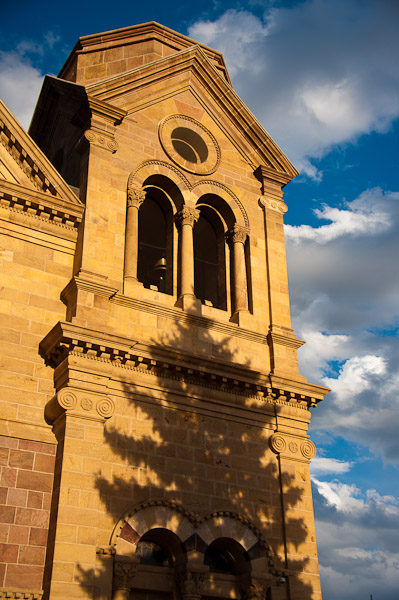
Santa Fe Cathedral at Sunset

Two weeks ago I went to a very different kind of workshop: the Mentor Series Photo Trek in Santa Fe, New Mexico. This three-day program had 37 students, two instructors, a bus and driver for the first two days and cost $1,000, which included no food, housing or transportation to/from the event. Mentor Series is owned by Popular Photography and runs about a half-dozen  workshops each year all over the world.

So how did they compare? In the case of the Mentor Series Trek, it’s “trek” that’s the operative word. It’s more about the location and somewhat less about photography. Yes, the attendees are all photographers (some with some very fancy gear) but you spend virtually all your time on the go. The first two days we were on the bus getting from one scenic location to the next a few hours each day, and once we arrived, there were often miles of walking to do. Beautiful scenery to be sure, but more hiking than shooting. And certainly not a lot of time to stop and “work” a subject for an extended period. The best shooting was actually the day they dumped the bus and we walked the city of Santa Fe on foot: once at sunrise and once at sunset. [Santa Fe is one of the best cities I've ever shot in. You could easily spend two or three days just walking its streets with a camera. Great art and architecture, terrific light and shadows, and a community that is very accepting of (and used to) photographers wandering around.]

By comparison, Derrick Story’s workshops often include a location such as a local safari park or (as next month) an early morning balloon launch, but there’s usually just one outside event per weekend. The rest of the time is spent in his studio — he usually includes at least one model session — and in the classroom. And it’s the classroom (and the class size) that really sets the two experiences apart. Derrick spends some of his time actually teaching from a podium and he gives the students actual assignments. For example, he might send you into the studio to shoot a model using only a single strobe. That’s something you can do when there are only eight students and they break into groups of four. With 37 students — forget it; everyone is on their own.

This brings up the question of why take one of these workshops at all. Professional photographers on assignment are obviously going to shoot a lot. But we serious amateurs have an interesting challenge. When my wife and I recently went to Egypt, I would have loved to have been able to stop and spend an hour or two studying the light and playing with the composition at each location. I would have given up half or more of the less-visually interesting sites in order to have more time at a few of the good ones. But that’s just me. My wife doesn’t particularly enjoy standing around while I study and experiment, and certainly the 22 other non-photographers in our tour group wouldn’t stand for it.

In one sense this is the role that weekend or weeklong workshops play. They allow the serious amateur to immerse him/herself in photography, surrounded by other photographers in a context where their peculiar habits of stopping, studying and shooting are socially acceptable. I imagine this is why Trekkies go to conventions. Wearing Mr. Spock ears to the grocery store is going to earn you some very strange looks. At a workshop you can truly geek out. Even when you’re on a bus, it’s all photography. All the time.

And what about the other students? Looking back, it’s not too surprising that a group of 37 would include a wider range than one of only eight. But I was surprised that the Mentor Series Trek included same true novices, some with the most expensive DSLRs. There were times when the instructors had to explain the relationship of aperture to shutter speed and ISO, and that surprised me. The instructors were even cornered by students with questions like, “What is ISO and how do I set it on my camera?” or “How do I focus this camera?” (Perhaps not surprisingly, some of these technically naive students sometimes produced some of the compositionally most exciting pictures.) In the smaller group of Derrick Story’s workshop, the range of skills was somewhat narrower although it still varied more than you might expect. Derrick does a good job of giving assignments that are applicable to each student’s skills.

In Santa Fe, I had relatively little access to the instructors given the 1:18.5 ratio as opposed to 1:8 at Derrick Story’s workshop. But even in Santa Fe, they were there if you had an important question. Towards the end of the Mentor Series weekend each student had the chance to show each of the instructors five images for critique (ten images total), and those sessions were quite valuable. We each got four or five minutes of constructive criticism that was appropriate for our skills.

Another benefit of any workshop or joining a photo club is the chance to see how other photographers interpret the same objects and locations. This happens in both the small and large workshops. No matter your level of experience, there are always those moments of, “Wow, I missed that!” that are truly educational.

So which of these two (or any other) do I recommend? It depends on what you want, of course. If pure learning is your goal, then I’d recommend a workshop with the smallest number of students, even a day of one-on-one. And I wouldn’t worry about finding the absolutely best photographer. So long as it’s someone whose work you respect and has been shooting it for a lot longer than you, you’re going to learn. Of course, reviews and opinions of previous students will help a lot.

On the other hand, if it’s a destination you particularly want to shoot or if you particularly want to travel, a larger more-distant workshop might be better for you. Mentor Series, for example, runs treks to places like Switzerland, London, Hawaii, Sedona and Wyoming. If you’re drawn to one of those locations and you want to experience the places in the context of photography, these might be better choices for you.

As for me? My prejudices probably show through in this blog post. I’m signed up for Derrick Story’s Hot Air Balloon Photo Workshop in a few weeks. None of the Mentor Series treks are on my calendar. I’m going to continue looking for small-group workshops that I can get to without hopping on an airplane. I’m also going to spend as much time as possible taking photo walks with friends. For example, tomorrow Scott and I will be shooting at the San Mateo Maker Faire as we did together last year. It’s tremendously visual and there’s enough to keep you engaged for a full day or more.

PocketWizards for Nikon

I’ve been using Nikon’s light-based CLS system for triggering my SB-600 and SB-900 strobes, but as others have experienced, I’ve been running into the line-of-sight limitations of that system. Last week I bought a set of Nikon-specific PocketWizard radio triggers. Learning how they work took a little longer than I expected, but the preliminary results are good. The supplied instructions are rather terse, so perhaps the following will save you some time if you go this route. In addition, you’ll want to refer to the wiki-based online documentation. (The Nikon-specific information is in an appendix.) There are all sorts of peculiarities such as how the PW system interacts with Nikons VR lenses.

The Nikon-specific PocketWizards are primarily designed to work with Nikon’s excellent TTL-based exposure system, iTTL, although they will also trigger older PW receivers. The basic setup is to pop a PocketWizard MiniTT1 transmitter on the camera’s hot shoe and a FlexTT5 transceiver under each Nikon strobe. You then set the strobes to TTL mode, make sure all PW devices are on the same configuration (C1/C2) and you’re set. All strobes will fire in sync and the Nikon CLS will do its thing to compute the exposure. I found:

  • Flash exposure compensation works as usual.
  • High-speed sync (FP) works well to 1/8000 sec, and you don’t have to do anything special to enable it. It just works all the time.
  • Even the modeling light works when you press the camera’s depth-of-field preview button.
  • Don’t put your strobe into Remote mode. Just set them up as though they were connected to your camera’s hot shoe.
  • In this basic configuration, the selection of groups (A/B/C) on the FlexTT5 makes no difference.
  • Automatic strobe zooming does not work, which makes sense whenever the strobes are not in the camera’s hot shoe. You must zoom your strobes manually.

Nikon’s Commander Mode, the ability to adjust the power of remote strobes individually (Nikon menu: Flash Control for Built In Flash) doesn’t work with PocketWizards. Instead, you need to buy a third device: the AC3 Zone Controller. This gadget sits on top of the MiniTT1, which is already atop your camera. The AC3 lets you dial-in power adjustments in 0ne-third stop increments for strobes in three groups (A/B/C). Note that these have nothing to do with Nikon’s A/B/C groups. It took me a while to comprehend this. The remote strobes think they’re each connected directly to the camera’s hot shoe. When used with PWs, the strobes know nothing about Commander Mode. They’re not “remotes” in that sense.

The AC3 really is a must-have unless you’re only shooting manually.  In addition to adjusting the power for each group relative to what Nikon’s CLS/iTTL would otherwise direct, you can switch a group into Manual mode to override the CLS control. The AC3′s +/- control wheel for each channel is mapped into controlling the flash output from 1/64 to full power. Note that so long as you want to use the AC3 for exposure control, leave your strobes set to TTL mode, even if you select Manual (M) on the AC3.

I occasionally use a Sekonic L-358 flash meter, so I decided to buy the optional Sekonic RT-32N module that fits inside the meter and allows one to trigger the strobes from the meter via PW radio signals. It took me quite a while to figure out how to configure everything for this mode of operation. It required changing the internally stored configurations of the PocketWizard devices, which in turn requires that you connect them to a computer via a USB cable, then use the PocketWizard Utility, which you can download from the company’s website. It runs on OS X or Windows and is very simple to use. You can save configurations in files, which makes updating a set of devices a simple matter.

I ended up using the two configuration settings (C1/C2) for TTL and “metered” mode, respectively. Here are the configuration values I’ve used successfully:

Config 1: AC3 for TTL or Manual Exposure Control

  • Strobe: TTL/FP Mode
  • FlexTT5: Normal Trigger Mode, Channel 7
  • Mini TT1: Normal Trigger Mode, Channel 7

Config 2: Sekonic-Meter Triggering and Manual Exposure Control

  • Strobe: Manual (M) Mode
  • FlexTT5: Basic Trigger Mode, Channel 27
  • MiniTT1: C2: Basic Trigger Mode, Channel 27
  • Sekonic: Channel 27, Group A (or other groups as needed)

With the above configuration, you can simply switch all the devices from C1 (for TTL) to C2 (for manual metering). In the manual-metering mode, you no longer have the ability to control strobe output using the AC3. Instead, you have to go to each device and set its power output manually. This is because the trigger signal is being transmitted directly from the Sekonic meter to the FlexTT5 transceivers. The camera, MiniTT1 and AC3 aren’t involved. Of course, you can still press the camera’s shutter release to trigger the strobes, which is why you need to set both the MiniTT1 (on the camera) and the Sekonic meter to the same channel as the FlexTT5 transceivers.

It all makes sense once you work your way through it. Or you can just copy my configurations as a shortcut. You might want to use channels other than 7 and 27 if you’re going to be shooting near me!

After just a few days, I’ve grown to like the PW system, as have most others who’ve tried it. On one hand there are more gadgets, batteries and things to go wrong. On the other hand, they don’t seem nearly as finicky as using Nikon’s optically based system. I can just set and aim my strobes where I wan’t. I don’t need to worry about whether they can read the signals from the camera. Now to see if I can get past the gadgets and make some good pictures with them.

Book Review: Within the Frame, by David duChemin

As an aspiring photographer, I’ve followed the blog and work of David duChemin for some time now. Mostly, I’ve appreciated his terrific photos. But last week I just happened to win a copy of his 2009 book, Within the Frame, at the local photo club’s annual banquet raffle. I’m only 40 pages into it, but already I know I’ve stumbled upon a real gem. David isn’t just a veteran photographer, he’s also a terrific writer. (Who knew?)

The book’s subtitle is “The Journey of Photographic Vision.” As David explains, photographers are (perhaps uniquely) part Geek and part Artist. If you’re like me — the Geek part comes more naturally — this is a great book for you. There’s virtually nothing here about the technology of photography or the gear. It’s all about that vision thing. In the first quarter of the book (which I’m still reading), David explains his emotional connection to the photographic process. The remaining chapters focus on storytelling and specifically photographing People, Places and Culture. If you’re trying to improve how you translate what you see and feel into a finished photograph, David’s narrative will give you a lot to think about regarding how you approach the art of photography.

Tahrir Square Video

Here’s some of the video I shot of Tahrir Square in Cairo on the first night of the Egyptian demonstrations.

It was shot using a Nikon D7000 with an 18-200mm f/3.5-5.6 lens at ISO 3200 from my 25th floor balcony of the Semiramis InterContinental Hotel, which is about a block away. If you watch the High Definition version you can see a lot more detail even through the digital noise.

Thanks to The Conversations Network’s Paul Figgiani for editing and titles.

Lenses for Egypt

I agonized over equipment for weeks before heading to the Middle East: Zoom or primes? High-end big/fast glass or a kit lens? Tripod? Strobe? Here’s what I ended up taking on the trip:

  • Nikon D7000 (ie, cropped sensor)
  • 18-200mm f/3.5-5.6 kit zoom
  • 12-24 f/4 wide-angle zoom
  • 35mm f/1.8 prime
  • Slik Sprint Mini tripod w/ball head

It worked out pretty well. The fast 35mm prime — 50mm on a full-frame body — was a lifesaver. It was the only way I could shoot in those no-flash interiors and the angle-of-view was usually just right. I almost never used the 12-24 wide-angle zoom because the 18mm was wide enough for almost anything. And without the 18-200mm zoom, I could never have shot the video of the demonstrations in Tahrir Square from a block away.

The one lens I wish I’d taken is my mid-range 24-70mm f/2.8 zoom. I would rather have had that one lens than the wide-angle zoom and the 35mm prime. The 24-70mm would have been fast enough for most of those interiors — I was shooting at high ISOs anyway — and would have covered most of my outdoor shots, too. And it’s a much sharper lens than the kit zoom. As it was, I had to swap lenses every time we entered or left a tomb or other structure. In the dust of the Sahara, I wasn’t real thrilled to be doing that. I would still take the 18-200mm kit lens, which would give me that slightly wider angle for the few times I needed it plus the longer focal length for the video. But I would have left it on the bus or even in the hotel most of the time.

Finally, I was very glad I took the lightweight Slik tripod, which is small enough that it actually fits inside a carry-on suitcase. I expected to use it for HDR shots but ended up using it for those long-range video shots instead.

Exodus from Egypt

On January 19th I tweeted “Getting ready for a trip to the Middle East. Decided to register with the State Department. You just never know.” Six days later I stepped out of the Egyptian Museum in Cairo to find a scene reminiscent of Berkeley in the 1960s: a stream of demonstrators running past the museum towards Tahrir Square.

My wife and I had been in Egypt for a little more than a day with a group tour of 22 other random American travelers. We didn’t think much about it at the time, but our group had been driven from the Semiramis Intercontinental Hotel along the Corniche el-Nil by bus even though the walking distance was only three blocks. We had noticed over the previous 24 hours that police in Cairo were everywhere, but that seemed to be the norm. Later that afternoon I would post on Facebook “Police shut down much traffic here in Cairo this afternoon due to a larger-than-expected demonstration. Took a while to make it back to our hotel. Seems like a large % of Egyptian males are employed as policemen.”

Even before the protests began, we were constantly accompanied by armed plainclothes tourist police. Either we had one aboard our bus or we traveled in a convoy with an armed escort vehicle or both. It seemed a bit over-the-top, but this was the Egyptian reaction to the massacre of 62 tourists in Luxor in 1997. As we drove through Tahrir Square to the museum that afternoon, however, we saw armored personnel vans and standing rows of riot police with helmets and shields. That definitely qualified as out of the ordinary, but we were only told it was National Police Day, and that demonstrators had decided to use that as an opportunity to protest.

The Egyptian Museum is surrounded by an iron fence. Our armed chaperones and the local police would not let us exit the grounds. They were communicating with our driver, who was trying to maneuver the bus into a position such that we could avoid walking towards the growing crowd of protesters. The officials closed the museum behind us at about 4pm. We would be the last visitors to the museum for some time. After about an hour we scurried to the bus, which then had to negotiate a rather circuitous course for the three blocks back to the hotel. The Corniche was blocked by rows of riot police directly in front of the hotel.

Once inside the hotel, my wife headed to our room while I borrowed her iPad to take advantage of the free WiFi in the lobby. After ninety minutes or so I went upstairs. My wife said, “Where have you been? You’ve got to see what’s happening outside.” For the next few hours we watched the growing numbers of demonstrators and police battle in and around Tahrir Square from our 25th-floor vantage point, a block away. Tear gas, rock throwing and what sounded like occasional gunfire, possibly rubber bullets. I took a few pictures and even recorded some short videos. It seemed to us like just another protest demonstration. Had I known what was to come, I would have shot a whole lot more. But still jet-lagged, we went to sleep around 1am.

Tahrir Square,January 25, 2011

7K1_1786

The following morning it seemed like all was quiet, and we continued our tour with a full day of sightseeing in the area immediately surrounding Cairo. Other than our omnipresent security detail, nothing seemed unusual. Back at our hotel that night, there were again protests in Tahrir Square, but by now seemed so ordinary that I didn’t even bother to break out the camera. The only impact was that we couldn’t walk out to a planned restaurant for dinner. We were told it wasn’t safe enough, particularly for groups of more than a few people. We were confined to the hotel for the evening.

Thursday morning we drove across the Nile to Giza and spent the day visiting the Great Pyramid of Cheops, the Great Sphynx and other attractions. We were again accompanied by our security detail, but little did we know that once again we would be among the last visitors to a major tourist site. Giza was closed to tourists starting the following day. We managed to keep one step ahead of a wave of lockdowns throughout Egypt.

A “day of rage” was scheduled throughout the country for the weekly Muslim holiday, Friday, January 28, 2011. We avoided it by awakening at the painful hour of 1:30am to head for the airport and a flight to Aswan. From there we drove further south to Abu Simbel. This was the day when all hell broke loose in Egypt. Twitter and Facebook had been blocked for two days, but now the government shut down the entire Internet. Even mobile-phone service was disabled in most areas. ATMs were down. Banks were closed. Commerce was grinding to a halt. Our only communications were one way: CNN International and the BBC via satellite TV. Those tens of thousands of police were gone — vanished from the streets of Eqypt. That night many of the police stations were ransacked and torched.

We boarded a 60-passenger ship to cruise Lake Nassar behind the Aswan dam, and for the next three days we watched developments throughout Egypt on TV, the same as everyone else on the planet.

We arrived back at Aswan on Monday, January 31 and were told to expect to evacuate via a flight the next morning to Cairo. By this time the roads in and out of Cairo were closed and national railway service was suspended. One woman managed to reach the U.S. Department of State in Cairo via phone. A recorded announcement told her to visit the Department’s web site. (Hello: There’s no Internet here!) Given what we were seeing on television, we didn’t relish the idea of getting to (and perhaps stuck in) the Cairo airport, so when we got to the Aswan airport and discovered that all in-country air travel had been suspended as well, we were actually relieved. After only a half hour in the Aswan airport, we went back to the Movenpick hotel and spent the day sightseeing in and around Aswan. There were army tanks all around the dam, and we heard (but didn’t see) demonstrations, but we fell in love with this underrated town on the Nile.

7K1_2815_HDR

Finally, on Tuesday, February 1, 2011, we got word that a charter flight would meet us that night at the Aswan airport to evacuate us to Amman. Given that most scheduled flights were canceled, the airport wasn’t crowded. We waited until 8pm or so, when the brand-new Embraer 175 arrived. It was like the closing scene of Casablanca. As we climbed the boarding stairs in the dark, a uniformed Royal Jordanian flight attendant on the top landing said, “Welcome to Jordan.” I wanted to give him a hug. 90 minutes later we landed in Amman.

We still didn’t have a flight out of Amman, so we got to spend two nights there. On February 3, we managed to get a scheduled Royal Jordanian flight to JFK, and spent the night at the Sheraton Hotel. The next morning we boarded an American Airlines flight for SFO. By 3pm on Friday, February 4, we were home: safe, sound and tired. Our neighbors had covered our front door with a Welcome Home banner.

We had the remarkable privilege of witnessing what may become known as the start of a revolution throughout the Middle East. We will forever be able to say we were there to see it happen. Had we arrived in Cairo three days earlier, we would have missed it. Two days later, and our trip would have been canceled. An amazing coincidence. My wife says we were meant to be there. I think she’s right.

I must thank the extraordinary people at Odysseys Unlimited who ran our tour.  Their efforts to get us out of Egypt while simultaneously allowing us to see as much of this beautiful country as possible were truly heroic. Day after day, we were amazed at how hard they worked for us. The U.S. Department of State was overwhelmed and had trouble even getting its own employees out of the country. We bumped into guests on other tours: None of them had a team working for them like we had from Odysseys. Everyone in our group agreed, we’re their ambassadors for life.

As dramatic as our story may sound, I want to be clear that we never felt endangered or threatened in any way. The Egyptian people were consistently warm and friendly. (The food was awesome.) They were at once excited and fearful of the changes coming to their country, but always protective of us. Our guide, Amin, is a remarkable and passionate human being. He’s now family. In a subsequent post I’ll explain what we learned from Amin and other Egyptians about what this revolution means to them and their country and what I believe it implies for U.S. foreign policy.

You can see my complete Flickr photo set slideshow from the trip.

Insure Your Stuff — It’s a Bargain

For over a year, I’ve been thinking about insuring some of my expensive photography and computer equipment. I’m getting ready for a three-week trip to the Middle East on Sunday, and since I’m taking some of that pricey camera gear, I finally decided to check this off my to-do list. Insuring this stuff turns out to be fairly simple and surprisingly inexpensive.

The hard part was the inventory. I created a spreadsheet with all the descriptions, serial numbers and purchase prices. Although it wasn’t necessarily for some items, I tracked down all the invoices. (Most of it was purchased from Amazon.com, who allows you to re-print the invoices for anything you have ever bought from them.) I put it all into a PDF and sent it to my State Farm Insurance agent, where their underwriter picked through it, item-by-item.

Bottom line: This is a terrific deal. For a cost of only $1.25/year per $100 of value, they will insure against any loss or damage with a zero deductible. I’ve got almost everything covered: not just cameras and lenses, but expensive filters, accessories and even my backpack. I can update the inventory at any time. I’ll eventually add other items like my wife’s jewelry, artwork, etc. I haven’t insured my computer gear yet, but my agent says that will cost even less. The underwriting is detailed to the extent that they won’t insure iPads, for example. The losses and risks are just too high. But they had no problem with any of the photo stuff.

The only other restriction is that this is for amateur photographers only. A pro will have to pay a higher rate. (Probably a completely different policy.) I haven’t seen the details, but I think this is an add-on to my homeowner’s insurance.

So if you’ve been putting this off, particularly if you’re planning a trip to a far-away place, call your insurance agent now and check it out.

Syl Arena’s “Speedliter’s Handbook” is a Must-Have

Last week I blogged about the Speedliter’s Checklist that accompanies Syl Arena’s new book, Speedliter’s Handbook: Learning to Craft Light with Canon Speedlites. Today the book arrived, and I’m even more impressed. No, I haven’t read the whole thing yet. In fact, I’ve only flipped through most of the pages, looking at the photos and diagrams, and read a few short chapters. But I can already tell you this is one of the most valuable books on photography on my shelf. Don’t think for a moment this is only for Canon shooters. I use Nikon gear including Nikon strobes. Very little of this book is specific to Canon Speedlites, and even those sections can easily be mapped into the Nikon equivalent. And don’t think this is only for large or small strobe users. Even if you only shoot in available light, there’s terrific material here.

I’ve written two books myself, so I have some idea of what it takes. Syl’s book is a monumental effort. It is packed (!) with photos and diagrams that get his points across. And they’re not those huge page-wasting images. This thing is dense! I’ve already discovered sections on equipment, accessories and techniques that made me say, “I wish I’d known that before now!” You will too.